This is the first problem in this CTF series that you will solve.
The in-game mission to get the Upload Data CTF file is separated into two parts
-
Communication: Download File (0/2)
-
Admin: Upload File(1/2)
After you finish the first Communication: Download File mission, you will head down to upload the file.
While uploading the file, you will find that the upload is not working properly.
Now move to the amongst-hint.md file. (You can find this at the top of the CTF website)
There are several hints for each CTF problem, and you may find the markdown hint useful.
Now, open the browser console and copy and paste the following code to download the file.
const data = FileTransferController.downloadMap.get([...FileTransferController.downloadMap.keys()][0]);

const dl = document.createElement("a");

dl.href = "data:binary/octet-stream;base64," + btoa(data);

dl.setAttribute("download", "sus");

dl.click();
Now, the script will provide you with the file name of sus.
Since this file has no extension, we want to determine its type first.
To do so, run
exiftool sus
This will show the metadata of the sus file which will look like this
└─$ exiftool sus
ExifTool Version Number         : 13.36
File Name                       : sus
Directory                       : .
File Size                       : 11 MB
File Modification Date/Time     : 2026:03:28 15:04:25-04:00
File Access Date/Time           : 2026:03:28 15:07:19-04:00
File Inode Change Date/Time     : 2026:03:28 15:07:26-04:00
File Permissions                : -rwxr-xr-x
File Type                       : PCAP
File Type Extension             : pcap
MIME Type                       : application/vnd.tcpdump.pcap
PCAP Version                    : PCAP 2.4
Byte Order                      : Little-endian (Intel, II)
Link Type                       : BSD Loopback
Time Stamp                      : 2025:08:27 22:53:08.123552-04:00
From this output, we can notice that sus is a pcap file.
To analyze the pcap file with Wireshark, we need to add .pcap extension
mv sus sus.pcap
Now we are ready to run Wireshark.
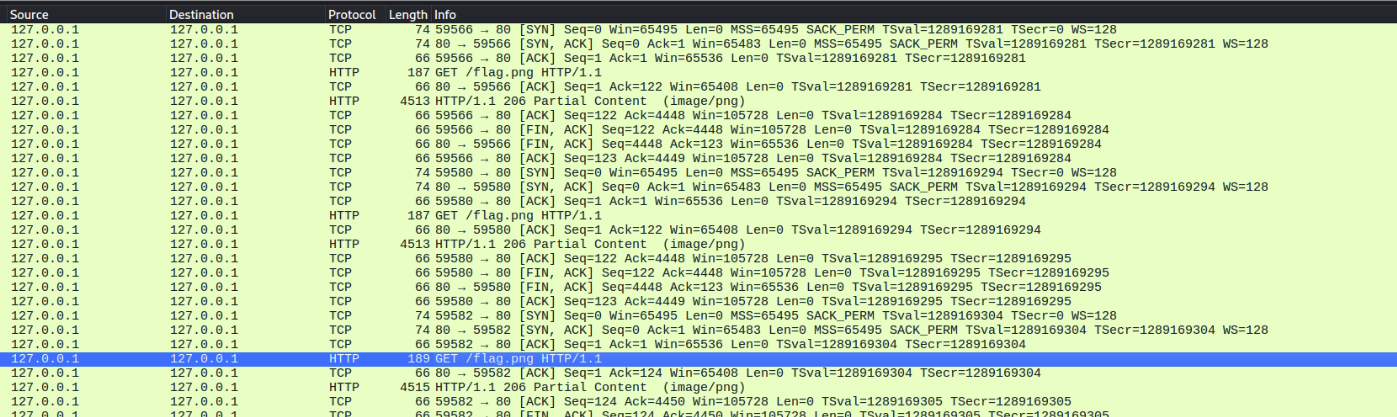
From this screen, we can notice that this pcap file shows the TCP communication getting flag.png partially over multiple HTTP requests.
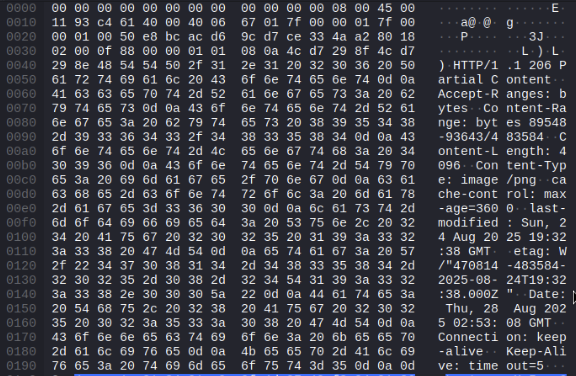
Let's take a more careful look at the HTTP response
And let's take another careful look at the next HTTP response
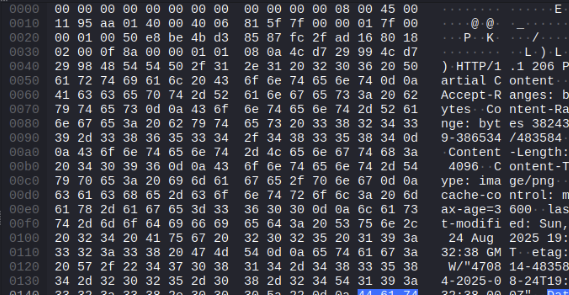
We can find that they are requesting and receiving the partial content in some arbitrary order. (look at the "Content-Range")
We want to assemble these partial contents in the right order and see what image it will be.
import dpkt
import re
with open("sus.pcap", "rb") as f:
    packets = list(dpkt.pcap.Reader(f))
file_chunks = {}  # total_size -> [(start, body)]
# parsing pcap file
for ts, buf in packets:
    try:
        eth = dpkt.ethernet.Ethernet(buf)
        tcp = eth.data.data
        payload = bytes(tcp.data)
        # we only need payloads
        if not payload or tcp.sport != 80:
            continue
        resp = dpkt.http.Response(payload)
        # This will extract the only part we need from the payload
        m = re.match(r"bytes (\d+)-(\d+)/(\d+)", resp.headers.get("content-range", ""))
        if not m:
            continue
        start = int(m.group(1))
        total = int(m.group(3))
        file_chunks.setdefault(total, []).append((start, resp.body))
    except:
        continue
for total, chunks in file_chunks.items():
    buffer = bytearray(total)
    for start, body in chunks:
        length = min(len(body), total - start)
        buffer[start:start + length] = body[:length]
    # You may notice that there are several images, so we want to distinguish those images.
    with open(f"{total}.png", "wb") as f:
        f.write(buffer)
    print(f"file_{total}.png: {len(chunks)} chunks")
You will find three images generated. Open each image, and you will find the flag.